Layout map
Place several schematics on a map and build them as one schematic.
Open the map
Section titled “Open the map”- Press V to open the library.
- Tick the schematics you want. Ticks stay while you change folders.
- Choose Layout. The ticked schematics appear in a palette.
A saved layout (<name>.sslayout.json) also shows in the library. Select it to open the map again. See Save a layout.
The map
Section titled “The map”One square is one block. Each piece is drawn in its real top-down shape, so an L-shaped house shows as an L.
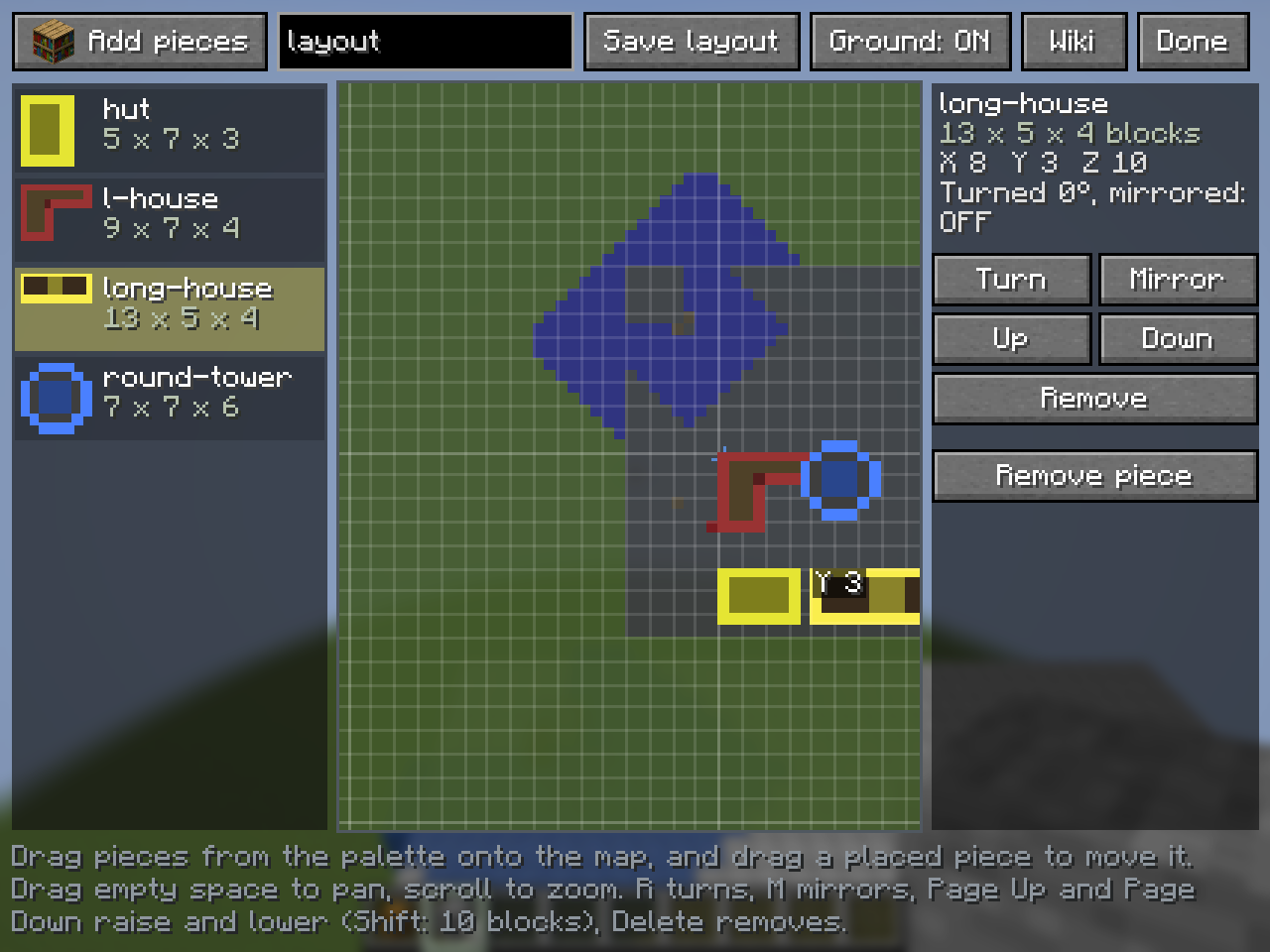
| Input | What it does |
|---|---|
| Drag from the palette | Drops a piece on the map. |
| Drag a placed piece | Moves it one block at a time. |
| Drag empty space | Pans the map. |
| Scroll | Zooms. |
| R | Turns the piece a quarter turn. |
| M | Mirrors the piece. |
| Delete | Removes the piece. |
| Page Up / Page Down | Raises or lowers the piece one block. Hold Shift for 10. |
Click a piece to open a panel with the same controls. A raised or lowered piece shows its height.
The map opens zoomed to fit what you placed. A new map is centred on block 0,0.
Overlap
Section titled “Overlap”Pieces may overlap. Where they do, the later piece’s blocks win. Its air never clears an earlier piece’s blocks.
Squares that no piece covers are never touched in the world, even with Include Air on. An L-shaped layout pastes as an L.
Ground
Section titled “Ground”A faint picture of the real ground shows under the grid. It shows where the layout will be built. Only loaded chunks appear. The Ground button turns it on and off.
Build it
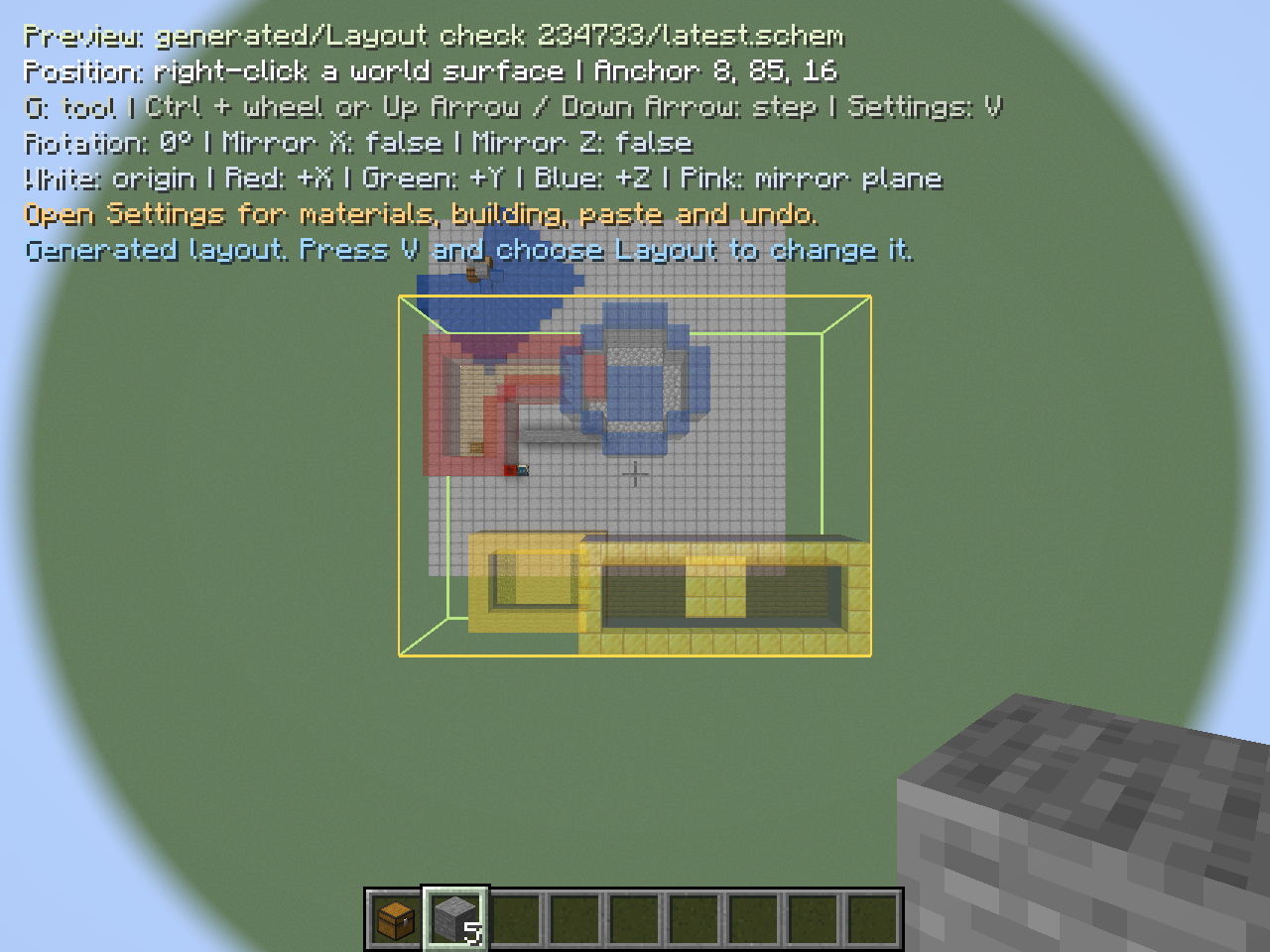
Section titled “Build it”Choose Done, or press Esc. The layout becomes one normal preview. You can move, rotate and mirror it as one piece, and use Creative paste, Materials and Survival building as for any schematic.
The first time, the layout’s corner is placed 5 blocks in front of you.
Save a layout
Section titled “Save a layout”Choose Save layout to keep the pieces and where you put them. The file is <name>.sslayout.json, using the name in the Layout name box. It is saved in your schematics/ library: in the same folder as the layout file you opened, or in the library root for a new layout. Open it again from the library.
The built schematic is separate. It is written to schematics/generated/<layout name>/latest.schem and replaced each time you build.
To change it again, press V and choose Layout.
Edit one piece in the world
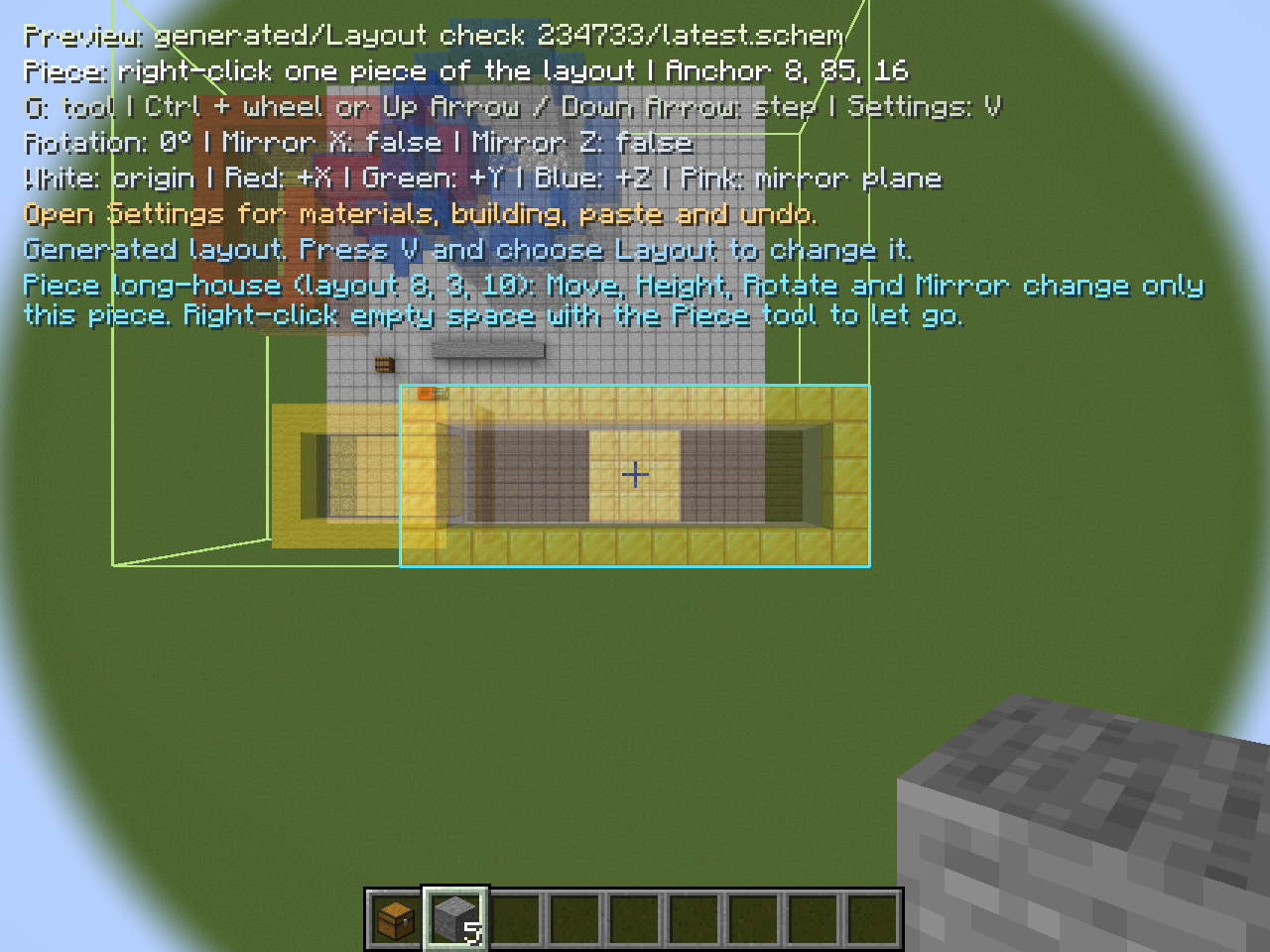
Section titled “Edit one piece in the world”While the preview shows a layout, the preview tools include Piece.
- Right-click a piece to select it.
- Move, Height, Rotate and Mirror now change only that piece. The layout rebuilds in place.
- Right-click empty space to let go.
The change shows when you reopen the map.
Missing pieces
Section titled “Missing pieces”A layout stores which schematic files it uses. If one of them has been moved or deleted, the palette shows Missing file beside it. Its pieces stay on the map as red squares marked ?, and a note says they are left out of the build. The rest of the layout builds as usual.
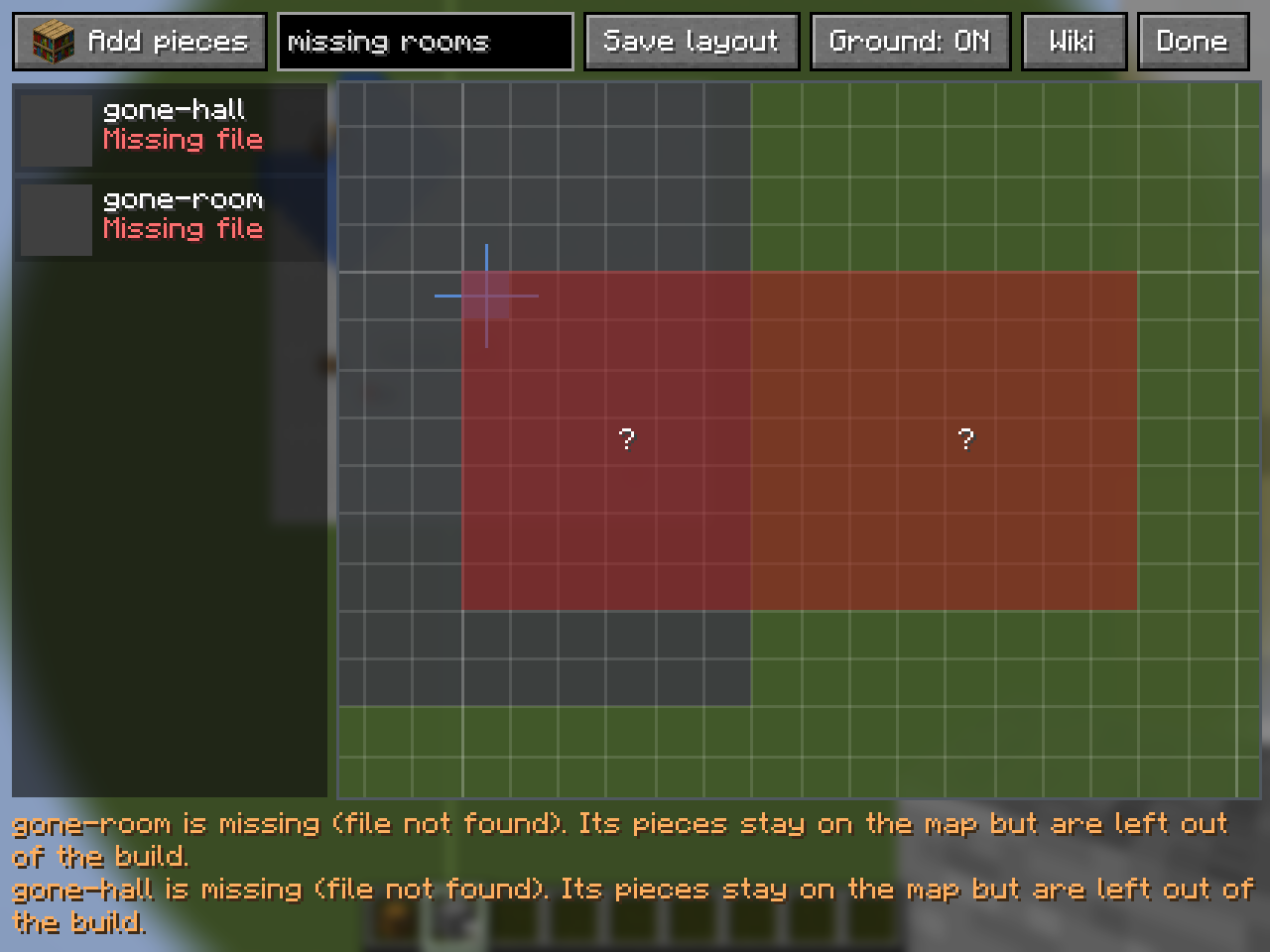
If every placed piece is missing, Done builds nothing and says: Nothing to build: none of the placed pieces could be read. Put the files back in the library, or replace the pieces, to build again.
Limits
Section titled “Limits”- The map shows one floor from above. Use Page Up and Page Down for height.
- The built layout has the same size limits as an imported schematic.
- A block always turns and mirrors. Saved data that cannot be turned, such as a modded machine’s stored direction, is kept as it was.
- Layout files from pre-release test versions are refused. Make the layout again.